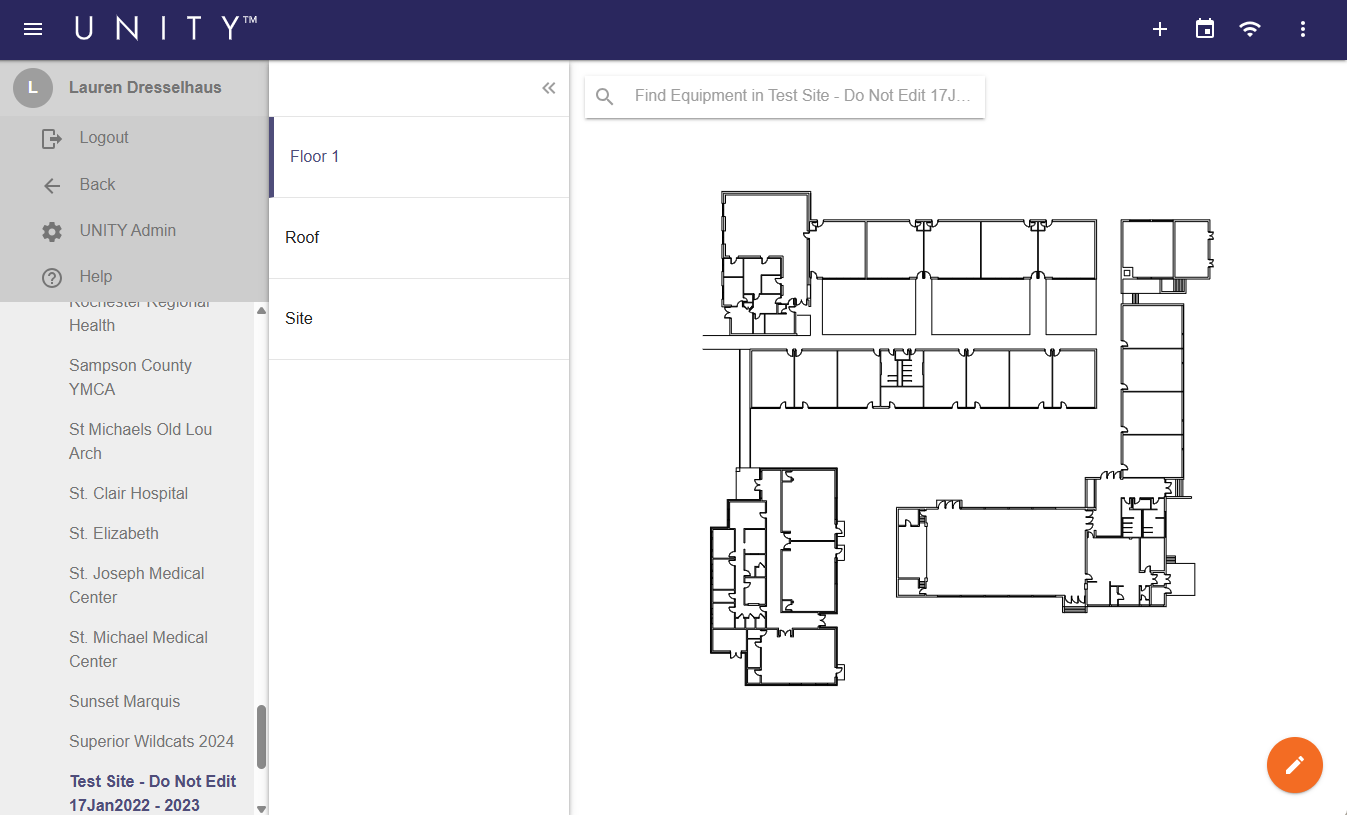
- First, open the desired map.
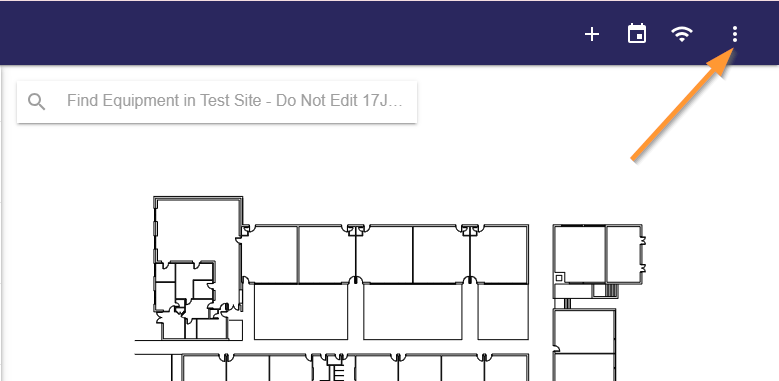
- Click the vertical ellipsis icon at the top right of the screen to open the Maps menu.
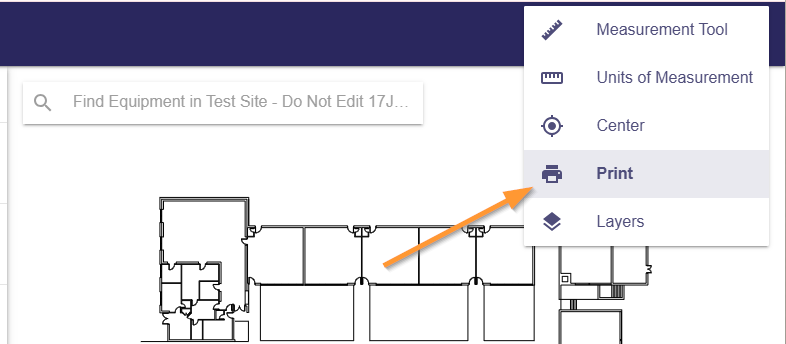
- Select the Print option from the menu.
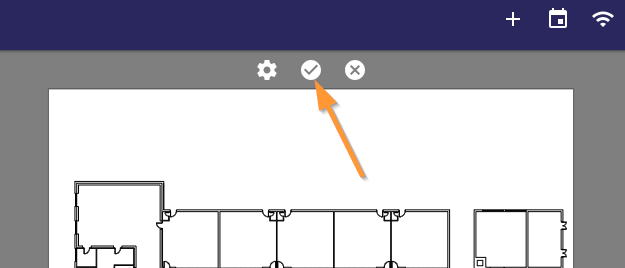
- The white area on the screen is the area that will be printed. To adjust, zoom in and out or pan around until the desired portion of the map is seen within the white area.
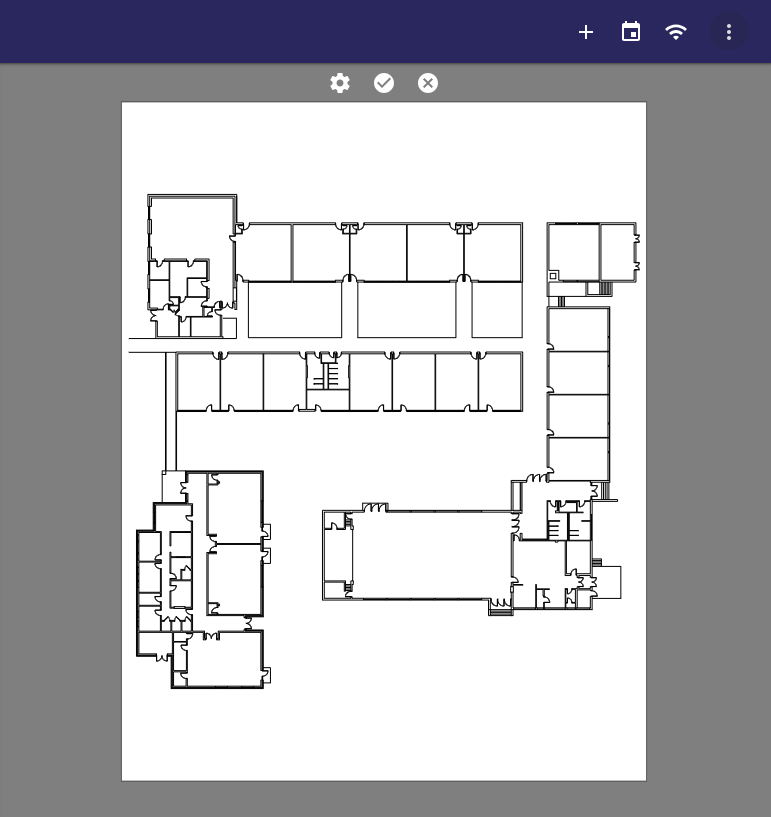
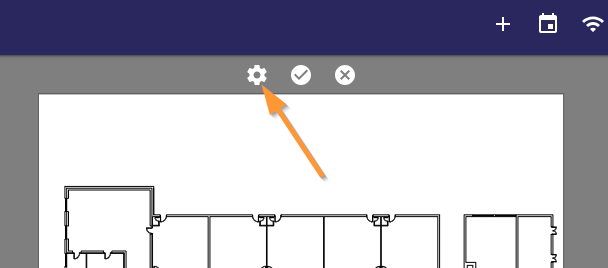
- To preview how the area will look in a different paper size or orientation, click the Gear icon at the top of the print preview area.
- Please note that this is for preview purposes only. Final paper size/orientation must be selected from the printer options presented when the print is confirmed.
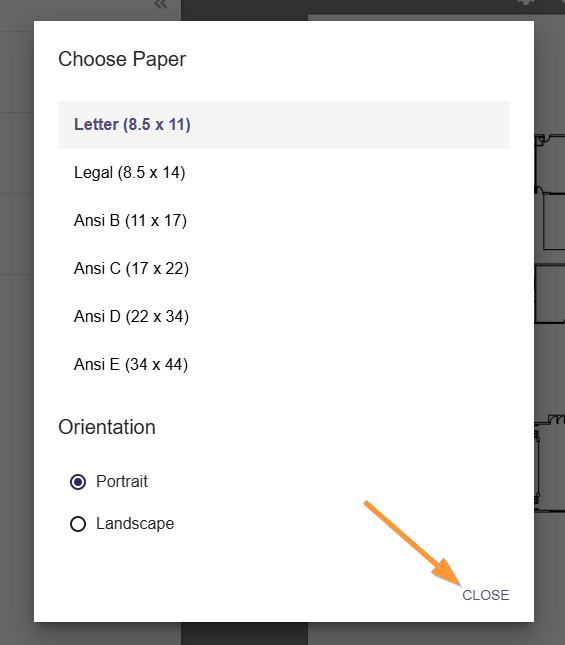
- Click any option to select, then click CLOSE to exit the window and see the changes to the print preview.
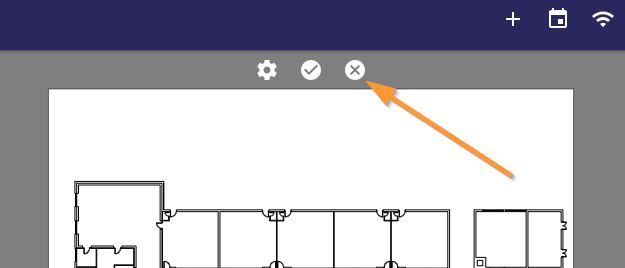
- To cancel and exit the print preview, click the X at the top of the print preview area.
- To confirm the print, click the Checkmark at the top.